> ## Documentation Index
> Fetch the complete documentation index at: https://docs.ghost.org/llms.txt
> Use this file to discover all available pages before exploring further.
# Reinstalling Ghost
> Learn how to update to the latest version of Ghost by creating a new install.
***
A full reinstall of Ghost is recommended for:
* Sites running Ghost `0.x`, `1.x`, `2.x`
* Sites using SQLite3 in production on any Ghost version
## Switch user
Switch to the user you used to setup your Ghost install for running Ghost commands:
`sudo -i -u ghost-mgr`
## Update Node
Run `node -v` to check your node version.
If less than 14, update node:
* `curl -fsSL [https://deb.nodesource.com/setup_14.x](https://deb.nodesource.com/setup_14.x) | sudo -E bash -`
* `sudo apt-get install -y nodejs`
## Update Ghost CLI
Ghost-CLI is an npm module that can be updated using npm.
`sudo npm install -g ghost-cli@latest`
## Update to the latest minor version
Before updating to a new major version, you must update your site to the latest minor version.
First, perform a preliminary backup of your site: `ghost backup`
Then, update to the latest minor version using: `ghost update`. This command will inform you of a more specific command to run.
## Make a full backup
When performing manual updates it’s a good idea to make frequent backups, so if anything goes wrong, you’ll still have all your data.
Once you’re running the latest minor version, make a full backup using the following command to generate a download of your site’s data:
`ghost backup`
This creates a backup zip file of everything you need, including:
* Your content in JSON format
* A full member CSV export
* All themes that have been installed including your current active theme
* Images, files, and media (video and audio)
* A copy of `routes.yaml` and `redirects.yaml` or `redirects.json`
Read more about how to [manually download your site data](/faq/manual-backup).
## Disconnect Stripe
*Skip this step if your Ghost site is not connected to Stripe.*
If you have Ghost connected to a Stripe account in *Live mode,* it needs to be disconnected in order for you to be able to reconnect on your new installation.
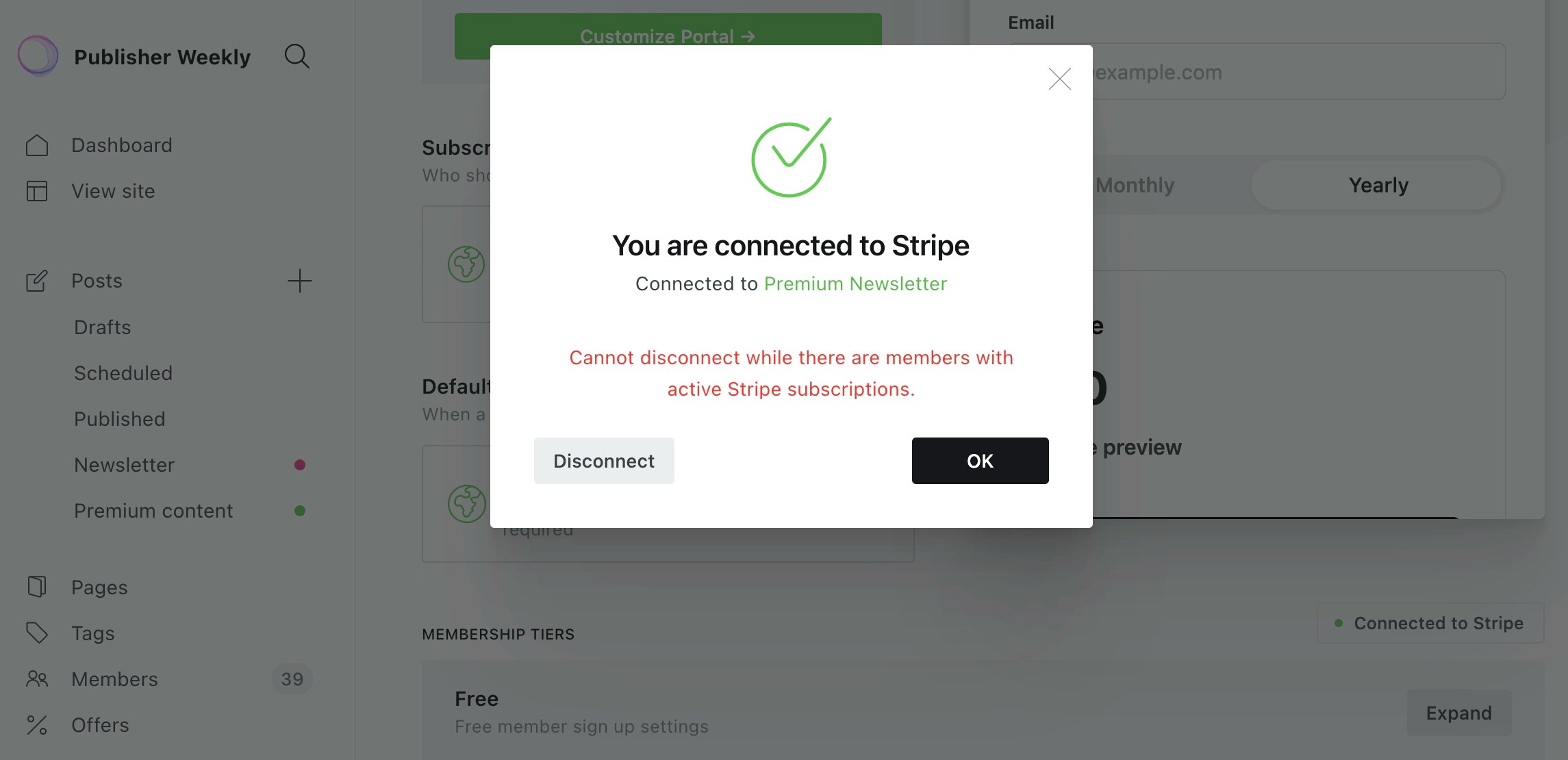 If you have paid members, or complimentary members with Stripe customer IDs, you need to delete these members from Ghost before disconnecting Stripe is possible.
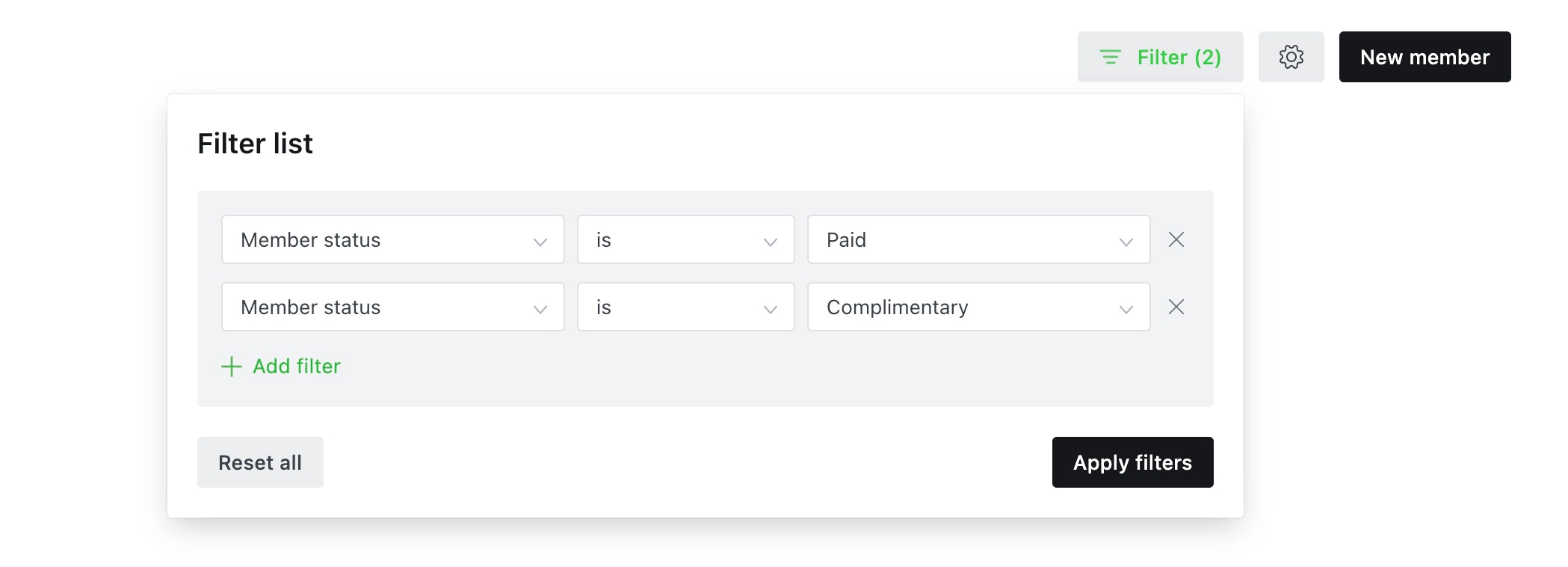 Filter your members list by member status to get a full list of members with paid and complimentary subscriptions, or delete your full members list (which has already been backed up) from the Member dashboard in Ghost Admin.
When deleting members with a Stripe subscription from Ghost, the subscriptions in Stripe are not affected, unless you explicitly opt to cancel them. Do not cancel the subscriptions.
When all members with subscriptions are removed from Ghost, you can successfully disconnect Stripe.
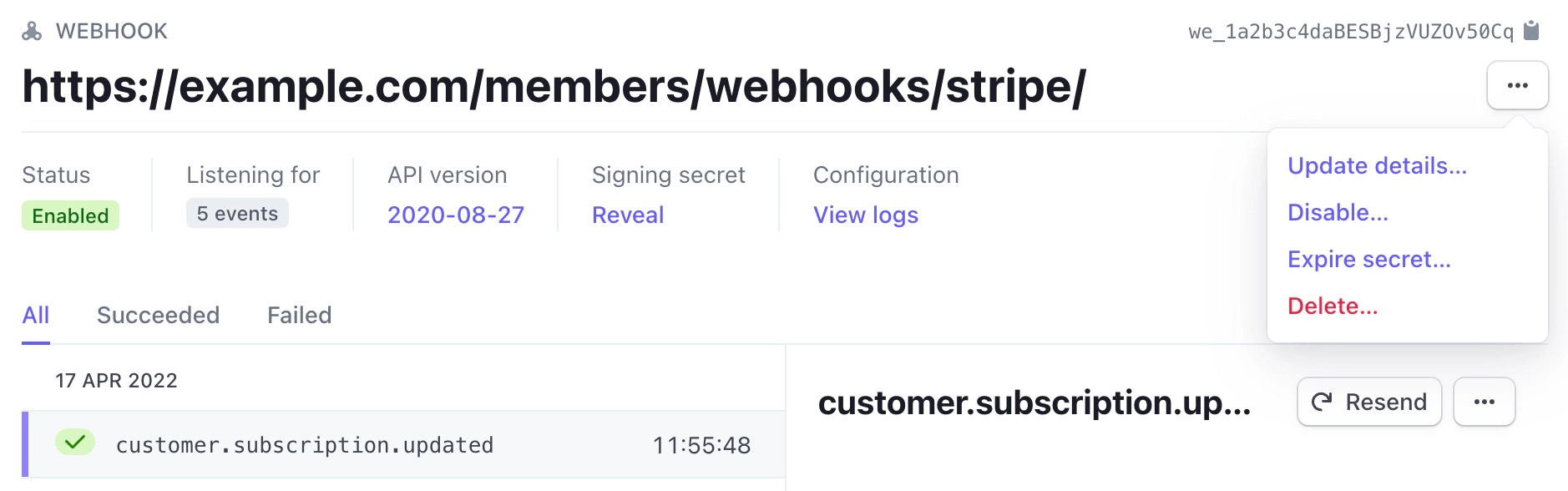
Once this is done, log into Stripe and delete any [webhooks](https://dashboard.stripe.com/webhooks) related to the old connection:
Filter your members list by member status to get a full list of members with paid and complimentary subscriptions, or delete your full members list (which has already been backed up) from the Member dashboard in Ghost Admin.
When deleting members with a Stripe subscription from Ghost, the subscriptions in Stripe are not affected, unless you explicitly opt to cancel them. Do not cancel the subscriptions.
When all members with subscriptions are removed from Ghost, you can successfully disconnect Stripe.
Once this is done, log into Stripe and delete any [webhooks](https://dashboard.stripe.com/webhooks) related to the old connection:
 ## Install Ghost
Once all your data is backed up, it’s time to spin up a fresh install of Ghost to migrate your publication over to. Follow the detailed [install guides](/install/) to create a new install of Ghost.
When your install is complete, follow the steps to setup your new site.
## Import your backup data
Once you have installed and setup a new site, it’s time to migrate your data.
If you used `ghost backup` to generate a backup zip, these are the steps to restore your data. If you did a manual backup, refer to the [manual backup guide](/faq/manual-backup).
1. Starting in your ghost folder,`unzip`thebackup into the `content` folder: `sudo unzip /path/to/backup-from-[backup-name].zip -d content`
2. Make sure the files have the right permissions: `sudo chown -R ghost:ghost content`
3. Restart Ghost: `ghost restart`
4. Import your content: `ghost import content/data/content-from[backup-name].json` - *This requires your username and password, and can also be done on the labs page in Ghost Admin.*
## Reconnect Stripe
*Skip this step if you’re not using Stripe for paid subscriptions.*
To import paid members, Ghost needs to be connected to Stripe in Live mode *before* you import your members.
Make sure to connect Ghost to **the same Stripe account** you were using on your old installation - learn more about how to connect a Stripe account [in this guide](https://ghost.org/help/setup-members/#connect-a-stripe-account).
## Import members
With Stripe connected, you can now import your members CSV file. You’ll receive an email notification when the import process has completed.
This documentation is built and hosted on [Mintlify](https://mintlify.com), a developer documentation platform.
## Install Ghost
Once all your data is backed up, it’s time to spin up a fresh install of Ghost to migrate your publication over to. Follow the detailed [install guides](/install/) to create a new install of Ghost.
When your install is complete, follow the steps to setup your new site.
## Import your backup data
Once you have installed and setup a new site, it’s time to migrate your data.
If you used `ghost backup` to generate a backup zip, these are the steps to restore your data. If you did a manual backup, refer to the [manual backup guide](/faq/manual-backup).
1. Starting in your ghost folder,`unzip`thebackup into the `content` folder: `sudo unzip /path/to/backup-from-[backup-name].zip -d content`
2. Make sure the files have the right permissions: `sudo chown -R ghost:ghost content`
3. Restart Ghost: `ghost restart`
4. Import your content: `ghost import content/data/content-from[backup-name].json` - *This requires your username and password, and can also be done on the labs page in Ghost Admin.*
## Reconnect Stripe
*Skip this step if you’re not using Stripe for paid subscriptions.*
To import paid members, Ghost needs to be connected to Stripe in Live mode *before* you import your members.
Make sure to connect Ghost to **the same Stripe account** you were using on your old installation - learn more about how to connect a Stripe account [in this guide](https://ghost.org/help/setup-members/#connect-a-stripe-account).
## Import members
With Stripe connected, you can now import your members CSV file. You’ll receive an email notification when the import process has completed.
This documentation is built and hosted on [Mintlify](https://mintlify.com), a developer documentation platform.